Chapter 1: Environment Setup
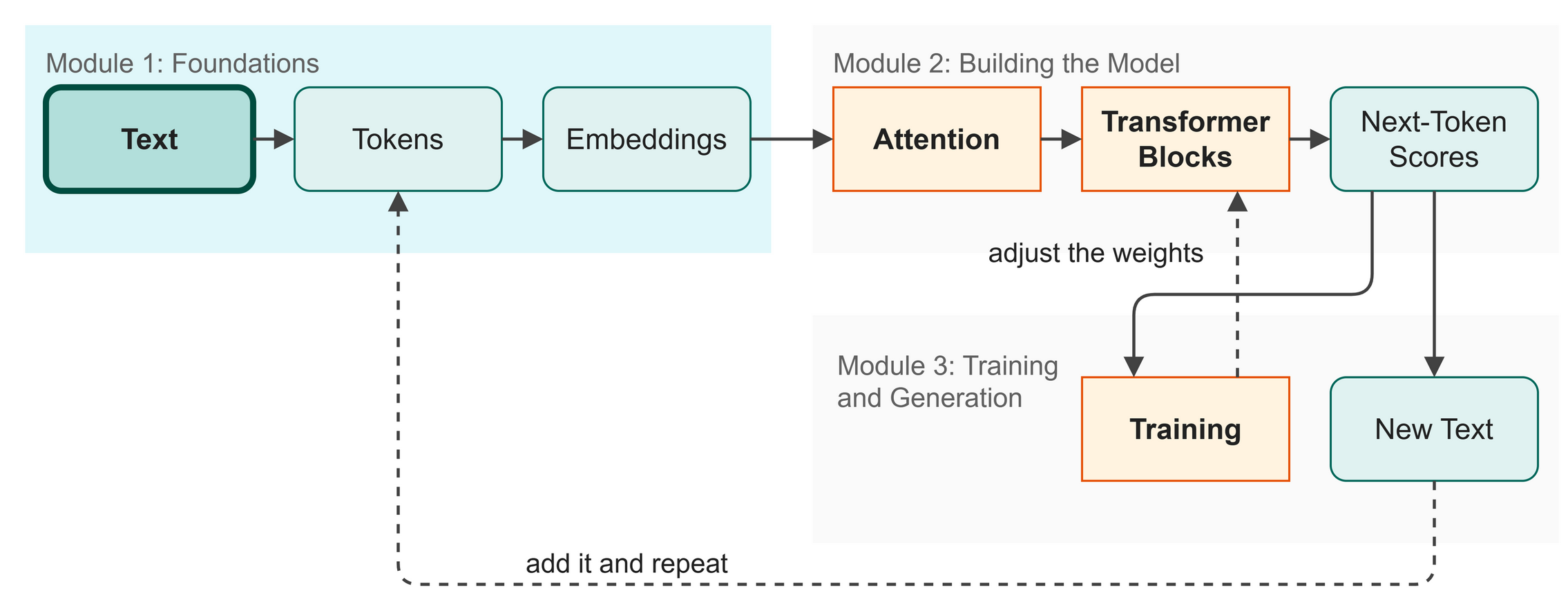 Figure 1.1: Before you build, you set up your tools.
Your environment is the set of tools that run the code. Setting it up gives you everything you need to build and run the model (Figure 1.1). This creates a predictable foundation so the code works the same way for you as it does in this book.
In this chapter you will:
- Install Python and open a terminal to run commands.
- Download the project code using Git.
- Set up an isolated workspace for your packages.
- Download the training dataset.
Words to Know
- Terminal: a text-based window where you type commands.
- Repository: a folder of code stored online.
- Virtual Environment: a separate toolbox for one project, so what you install for it stays out of your other projects.
- Package Manager: a tool that downloads and installs packages, the ready-made pieces of code a project uses.
In Business
When tech teams standardize their development environments, they prevent the classic "it works on my machine" problem. When a company builds a house-style AI assistant to draft emails, the development team standardizes their environment. Virtual environments and fixed package versions ensure that new hires can start working immediately on the AI assistant and that code runs identically on laptops and production servers.
Two Ways to Follow Along
You can run every chapter of this book in a web browser or on your own laptop. Choose one now, and switch later if you like.
In a web browser, with nothing to install. Every chapter page has a button at the top, "Run it in your browser". It opens the chapter as a notebook in Google Colab, a free service that runs Python on Google's computers, so all you need is a Google account. Run the first cell, which fetches the project code and the Shakespeare text, and then run the cells below it in order. If you choose this way, skip Steps 1 to 6, read Steps 7 and 8 to see what a healthy setup prints, and go on to Chapter 2.
On your own laptop. Follow Steps 1 to 8 below. You set up once, and after that every script in the book runs with one command, with or without an internet connection.
Step 1: Install Python
Python is the programming language this entire tutorial uses, and we need version 3.10 or newer. You can download it from the official website (Figure 1.2).
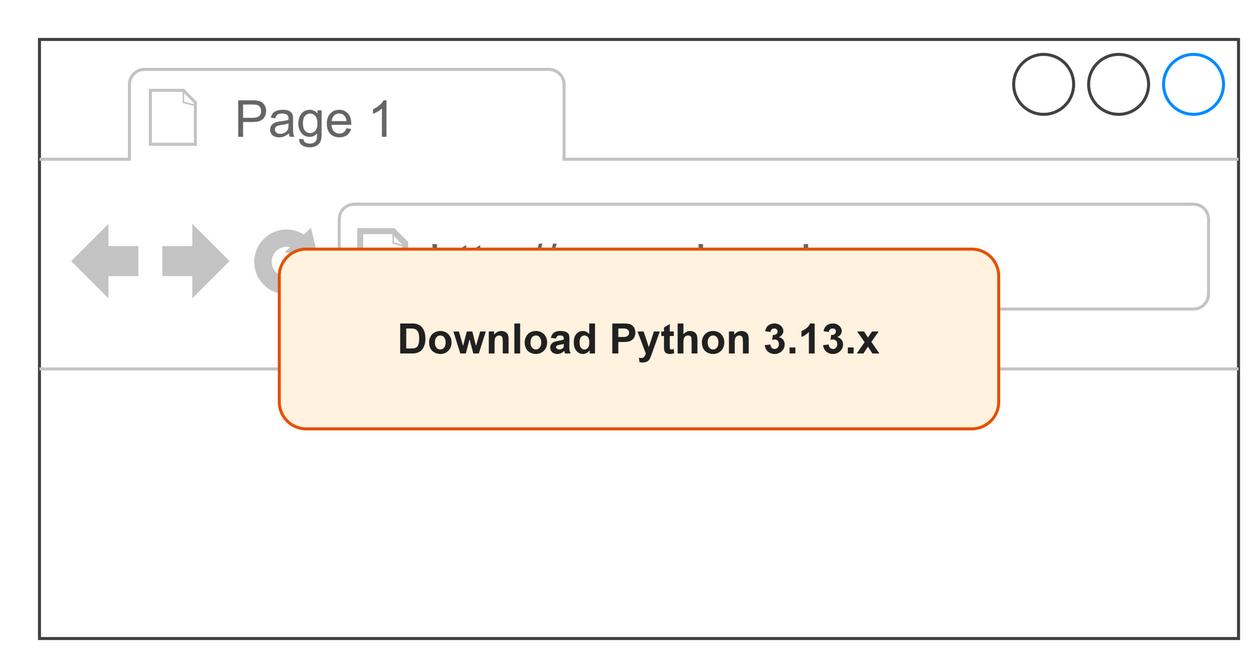 Figure 1.2: Download the latest Python installer.
Windows:
- Open your web browser and go to python.org/downloads
- Click the button to download Python 3.13.x.
- Run the downloaded
.exeinstaller. - Critical: On the first screen of the installer, check the box that says "Add Python to PATH" at the very bottom. PATH is the list of places where the computer looks for programs. If you miss this box, Python will not be found when you type commands.
- Click "Install Now".
macOS:
- Open your web browser and go to python.org/downloads
- Click the button to download Python 3.13.x.
- Run the downloaded
.pkginstaller and follow the prompts.
Step 2: Open a Terminal
The terminal is where you will run your code.
Windows:
Press Win + R, type cmd, and press Enter. A black window appears with a blinking cursor.
macOS:
Press Cmd + Space to open Spotlight, type Terminal, and press Enter.
Verify your Python installation by running this command:
You should see Python 3.10 or newer printed to the screen. (On macOS, if python is not found, type python3 --version instead.)
Step 3: Install Git
Git downloads the project code from the internet. Figure 1.3 shows the download page.
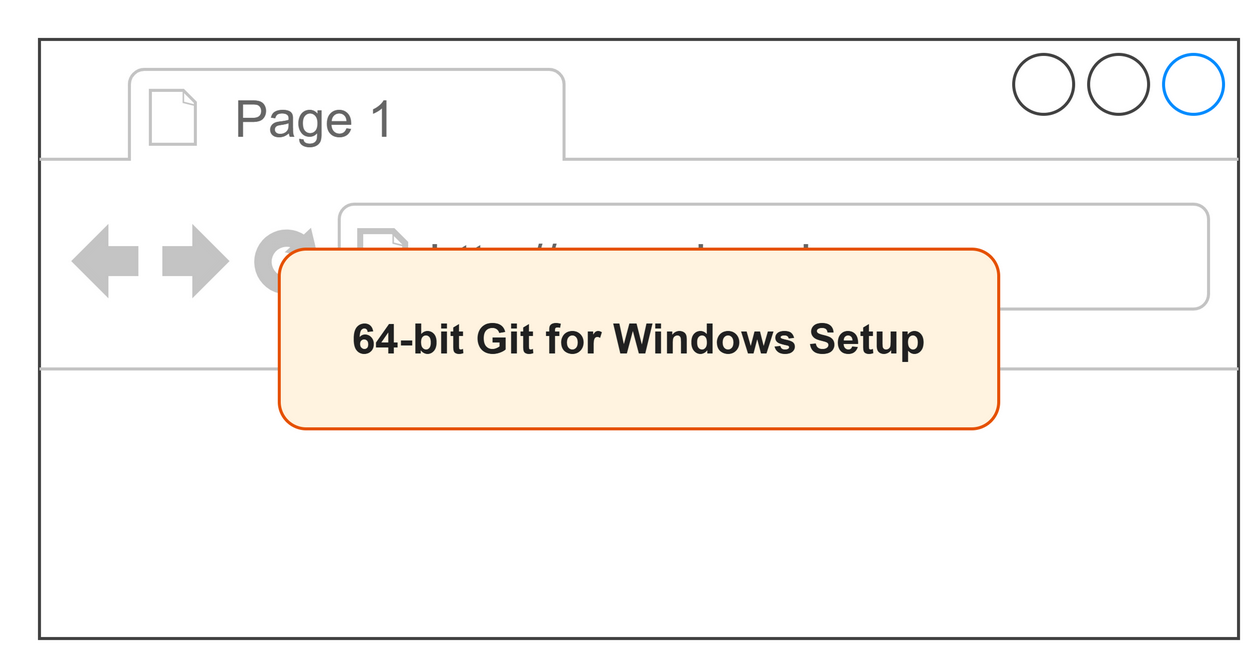 Figure 1.3: Download Git to get the project files.
Windows:
- Go to git-scm.com/download/win
- Download the "64-bit Git for Windows Setup".
- Run the installer and click "Next" through every screen.
macOS:
Open your terminal and type git --version. If it is not installed, macOS will ask if you want to install the "Command Line Developer Tools". Click Install.
Verify Git is installed (open a new terminal window on Windows):
You should see a message confirming your Git version.
Step 4: Download the Project
Now download the project code with a single command.
Then move into the project folder:
Step 5: Create a Virtual Environment
Different projects need different versions of the same library, so a virtual environment gives this project its own isolated box of packages (Figure 1.4).
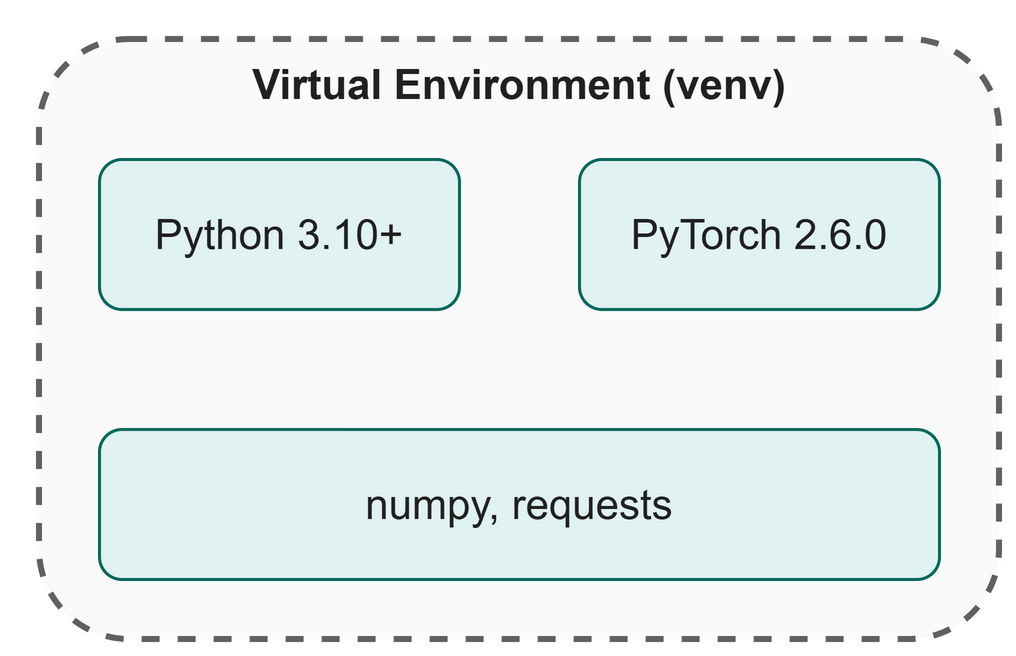 Figure 1.4: A virtual environment isolates your project's libraries.
Make sure your terminal is inside the build-llm-from-zero folder, then run:
Windows:
macOS:
You will see (venv) appear at the start of your terminal prompt. You must run the activate command every time you open a new terminal window.
Step 6: Install PyTorch and Dependencies
With the virtual environment active, install the required libraries using pip, Python's package manager.
First, install PyTorch (we use a CPU-only version):
Then install the other libraries:
Step 7: Download the Shakespeare Dataset
We will train our model to write in a specific style using a selection of Shakespeare's plays. (Dataset credit: the Tiny Shakespeare text comes from Andrej Karpathy's char-rnn project, https://github.com/karpathy/char-rnn)
$ python src/utils/download_data.py
Dataset ready: src/data/shakespeare.txt (1089 KB)

Dataset statistics:
  Total characters : 1,115,394
  Unique characters: 65

First 200 characters:
----------------------------------------
First Citizen:
Before we proceed any further, hear me speak.

All:
Speak, speak.
...
The text ships with the project, so this step checks it rather than downloading it. If the file were missing, the script would download it and check that it is exactly the same text the book was built from.
Step 8: Verify Everything Works
Run the setup verification script to confirm all pieces are ready:
$ python src/ch00_setup_check.py
Chapter 1: Checking your environment...

[OK] Python: 3.13.13
[OK] PyTorch: 2.6.0+cpu
[OK] NumPy: 2.5.3
[OK] Requests: 2.34.2
[OK] Shakespeare dataset found: 1,115,394 characters
[OK] Quick tensor test passed

All checks passed! You are ready to start Chapter 2.
If you see this, you are ready to begin.
Watch Out
If a script fails with ModuleNotFoundError: No module named 'torch', your virtual environment is not active. Run the activate command again (venv\Scripts\activate on Windows, source venv/bin/activate on macOS).
Key Takeaways
- You installed Python (the language), Git (code downloader) and PyTorch (math library), and you opened a terminal.
- A virtual environment keeps this project's packages isolated.
- Always activate your virtual environment before working on this project.
- Once the setup check passes, your environment is ready for the next step in our map.
Check Your Understanding
- What does a virtual environment do?
- How do you know if your virtual environment is active?
- What is the command to move into the project folder?
Assignment
Assignment 1: Read your setup check
About 15 minutes. You run one script and write no code. Work in this chapter's Colab notebook or on your own laptop.
- Run it. Run
src/ch00_setup_check.pyas it is. Copy everything it prints. - Read it. Count the lines that start with
[OK]. Next to each one, write a few words that say what the script checked. - Compare. Put your output beside the output printed in Step 8. Which version numbers are different on your computer? Which numbers are exactly the same as in the book?
- Explain it. In two or three sentences a manager could follow, say why a team runs a check like this before anyone starts work.
Hand in: your output, your note on each [OK] line, your answers to step 3, and your sentences.
Further Reading
The library you are typing into. The design argument behind the tool this book uses: write the model as ordinary Python that runs line by line, so you can print a tensor or stop in a debugger, and still get the speed of compiled code underneath. It is the reason the code in this book can be read top to bottom and still trains a real model.
Paszke, A., Gross, S., Massa, F., Lerer, A., Bradbury, J., Chanan, G., Killeen, T., Lin, Z., Gimelshein, N., Antiga, L., Desmaison, A., Köpf, A., Yang, E., DeVito, Z., Raison, M., Tejani, A., Chilamkurthy, S., Steiner, B., Fang, L., ... Chintala, S. (2019). PyTorch: An imperative style, high-performance deep learning library (arXiv:1912.01703). arXiv. https://doi.org/10.48550/arXiv.1912.01703
Note. The Tiny Shakespeare text used throughout the book comes from Andrej Karpathy's char-rnn project: https://github.com/karpathy/char-rnn{ .note }
Next up: Chapter 2: What Is an LLM?